Quick Start: Your First Cull
Use this workflow to review a photo folder and mark the best frames.
1. Open a shoot
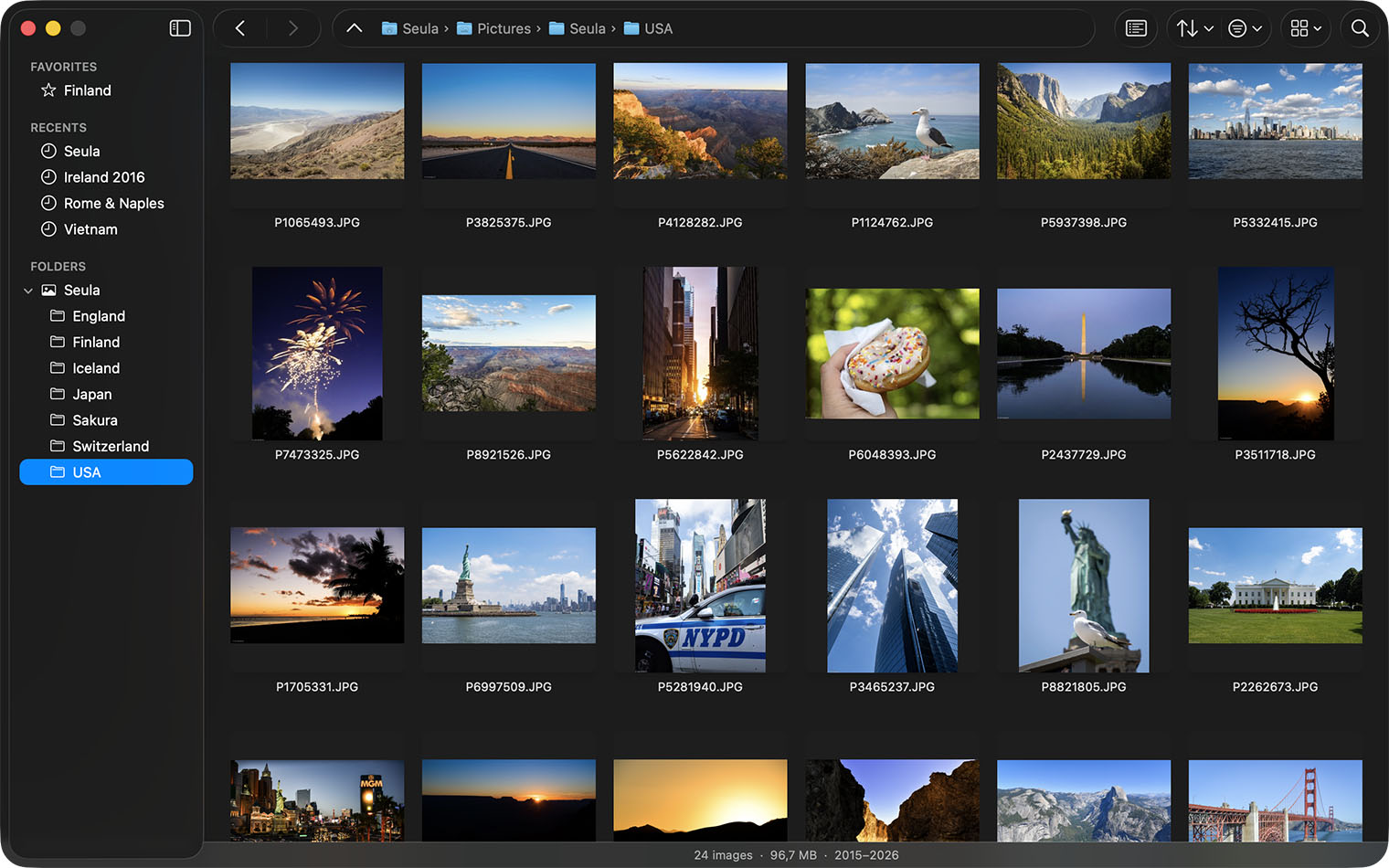
Choose File ▸ Open Folder (⌘O) and select a photo folder. Seula shows it in the browser's thumbnail grid.
2. Open the first photo
Double-click a thumbnail or select it and press Return. Move between photos with ← and →.
Space switches between fit to window and 100%.
3. Rate as you go
- 1–5 apply a star rating; 0 clears it.
- P picks a photo; X rejects it.
- 6–9 apply a color label.
To move to the next photo after a mark, choose Settings ▸ Viewer ▸ Auto-advance after. See Rating your photos.
4. Compare similar photos
Press C to open Compare and view similar photos side by side. Press C again to close it. In the viewer, B switches to a neighboring photo; hold it to show the neighbor only while you hold the key. See Comparing and reviewing photos.
5. Show your picks
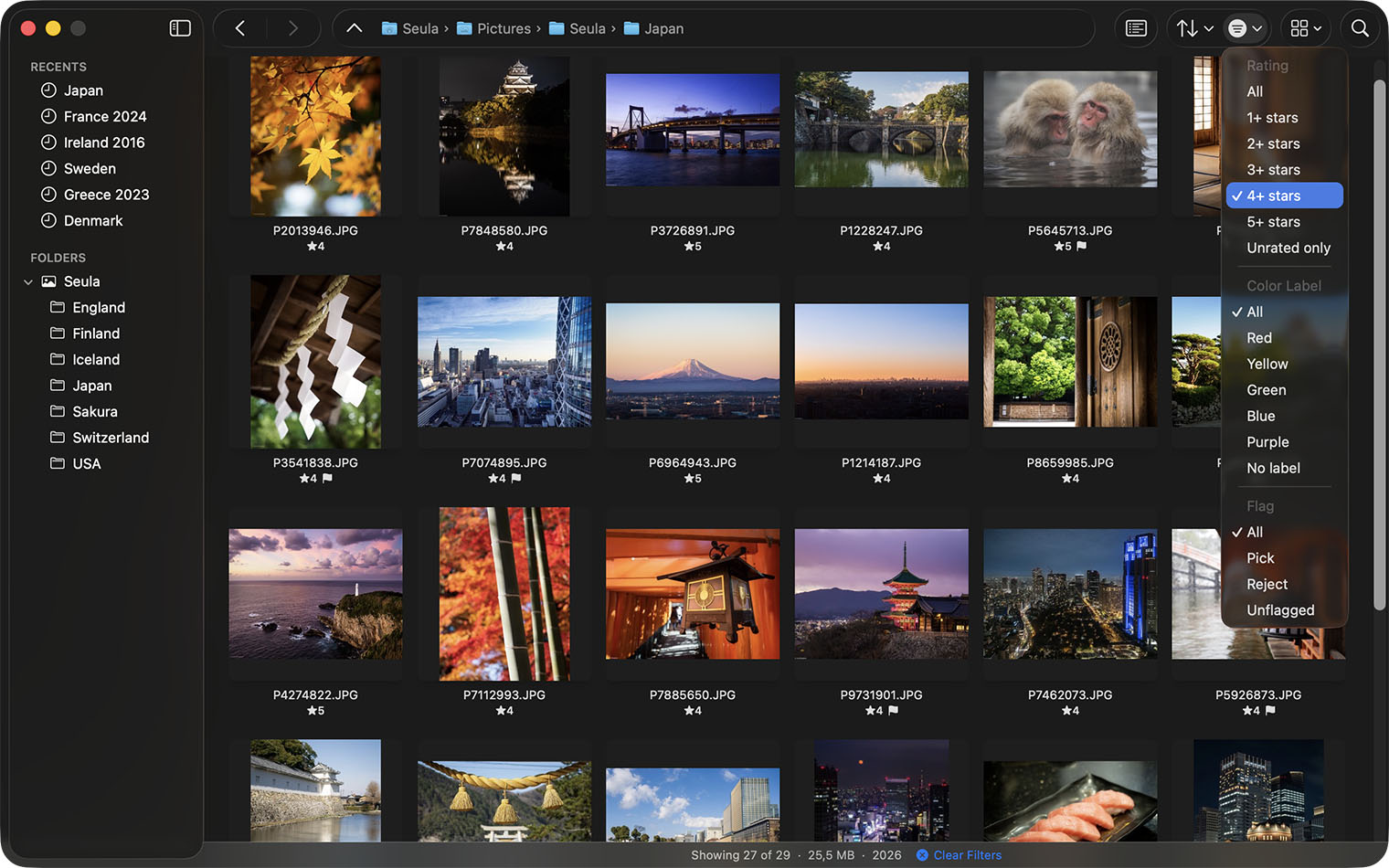
Use the toolbar's Filter button to show, for example, picked photos or photos rated four stars and above.
6. Open them in an editor
Ratings, flags, and color labels are saved as XMP metadata. Open the same folder in Lightroom or another XMP-aware app. You can also rename selected files first.
See Rating your photos and Keyboard shortcuts for more.