Renaming Files
Seula can rename one file or a group of files. The preview shows the new names before anything changes.
Rename one file
Select a photo and press F2, or choose File ▸ Rename. Enter a new name and press Return. The extension stays unchanged. A JPEG+RAW pair and its .xmp sidecar are renamed together.
Batch Rename
Select files, then choose File ▸ Batch Rename (⇧⌘R). Build names with a template or a chain of rules. The preview updates as you work.
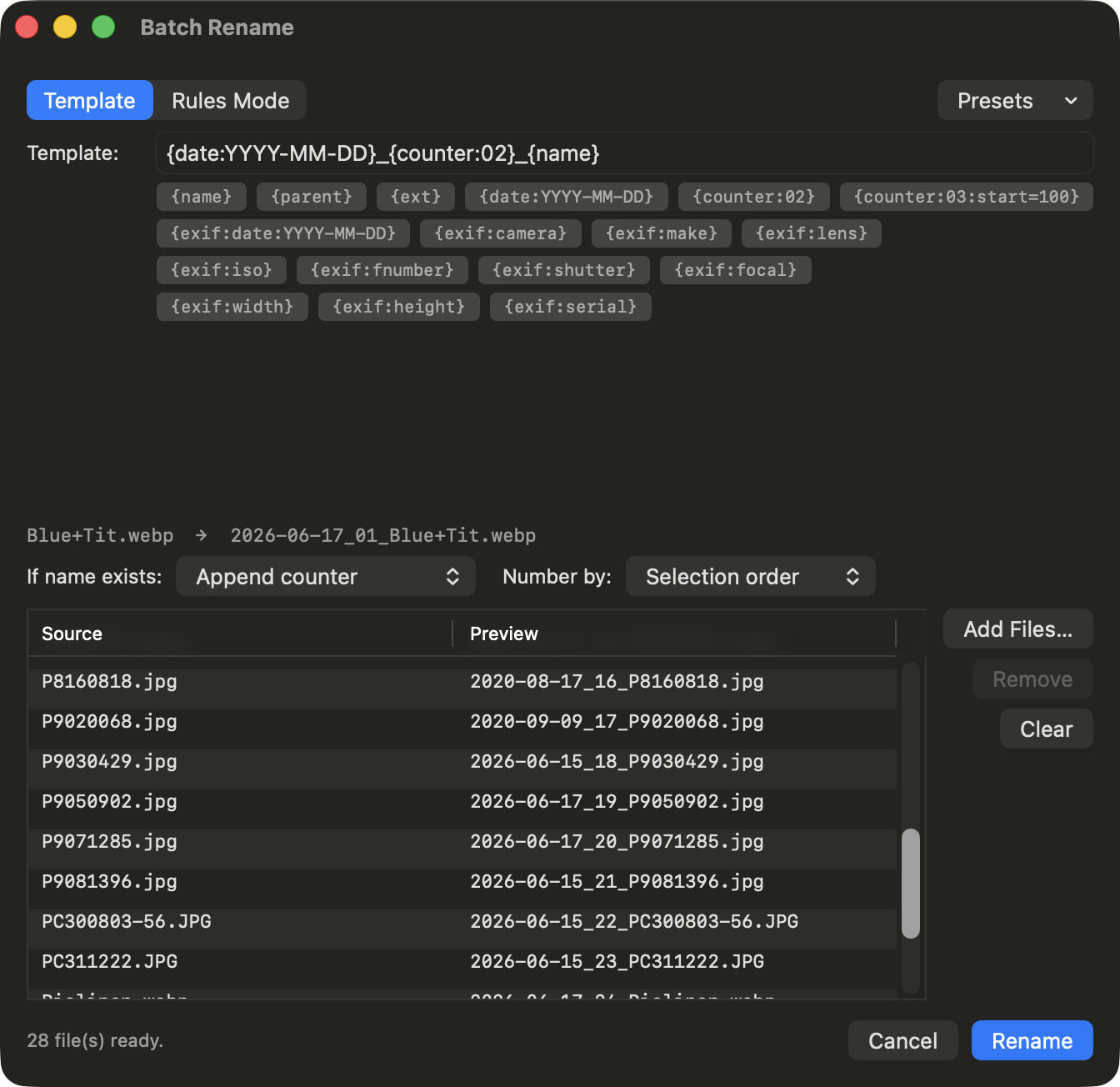
Build a name with tokens
Enter text and tokens in braces. Click a token to insert it at the insertion point. For example:
{date:YYYY-MM-DD}_{counter:03}_{name}could produce 2026-06-10_001_DSC_4821.jpg.
| Token | Inserts |
|---|---|
{name} | Original filename without its extension |
{parent} | Parent folder name |
{ext} | File extension |
{date:YYYY-MM-DD} | File date; YYYY MM DD HH mm SS are available |
{counter:02} | Sequence number; digits set its width |
{counter:03:start=100} | Counter starting at a chosen number |
{exif:date:YYYY-MM-DD} | EXIF capture date, or file date when absent |
{exif:camera} | Camera model |
{exif:make} | Camera maker |
{exif:lens} | Lens model |
{exif:iso} | ISO sensitivity |
{exif:fnumber} | Aperture |
{exif:shutter} | Shutter speed |
{exif:focal} | Focal length |
{exif:width} / {exif:height} | Image dimensions in pixels |
{exif:serial} | Camera serial number |
Build a name with rules
Each rule changes the name. Add one from Add Rule, then reorder, edit, or disable rules.
- Replace Text / Remove Text
- Insert Text
- Remove Characters
- Add Counter
- UPPERCASE, Lowercase, Title Case, Sentence case
- Clean Up
- Transliterate
- Add Date
- Regex Replace / Conditional Rule
Choose the numbering order
For a counter, choose Selection order, Capture date, File date, or Name.
Preview and conflicts
The preview shows each new name and any problem:
- Adjusted: a counter avoids a conflict.
- Skip: an existing target name leaves the file unchanged.
- Overwrite: an existing file is replaced.
- Invalid: the name is empty or contains
/.
Choose Append counter automatically, Skip conflicting files, or Overwrite existing files as the conflict policy.
Overwrite existing files replaces an existing file and cannot restore its overwritten data. Use Append counter automatically unless replacement is intentional.
Undo
Choose Edit ▸ Undo (⌘Z) immediately after renaming to restore the previous names.