Opening and Browsing Photos
The browser shows a folder as thumbnails. The viewer shows one photo at a time. See Comparing and reviewing photos for comparison tools and Photo stacks for bursts.
Open photos
- File ▸ Open Folder (⌘O) opens a folder.
- File ▸ Open File (⇧⌘O) opens a photo in its folder.
- File ▸ Open Recent lists recently opened folders.
Seula opens JPEG, HEIF/HEIC, TIFF, PNG, GIF, PSD, WebP, AVIF, JPEG XL, JPEG 2000, OpenEXR, HDR, and common camera RAW files. See Working with RAW photos for RAW support.
The browser
Sidebar
Use the sidebar to open folders and volumes. Click a disclosure triangle to show subfolders. Drag a folder to Favorites to keep it there. Choose View ▸ Sidebar (⌥⌘S) to show or hide the sidebar.
Thumbnail grid
Thumbnails show a photo's star rating, color label, and flag. A LIVE badge marks a Live Photo, and a multi-page file shows its page count. Change their size with the toolbar's ± control or ⌃⌘1, ⌃⌘2, and ⌃⌘3. Blown-out shows square thumbnails without names.
Drag photos onto a subfolder in the grid or breadcrumb path to move them. Hold ⌥ to copy instead.
Sort and filter
- Sort by name, capture time, date modified, size, or file type.
- Click Filter in the toolbar to filter by rating, flag, color label, file type, camera, lens, orientation, or ISO.
- You can select several values in one group. Different filter groups apply together. For example, show photos from one camera with a red or blue color label.
Filter shows the number of active conditions. Choose Clear Filters to show all photos again.
Photo and folder information
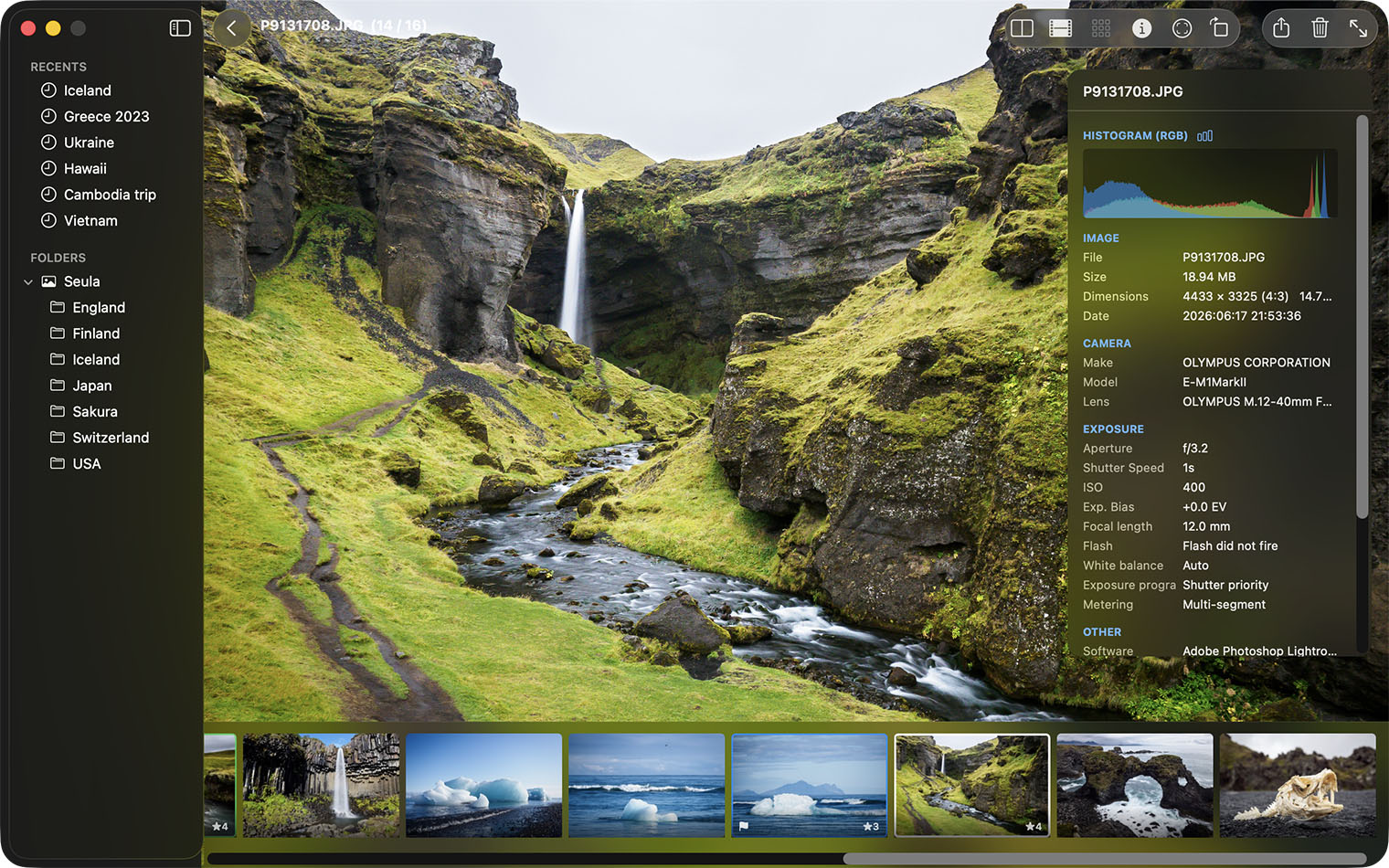
Press I to show the Info Panel with metadata and a histogram for the selected photo. Folder Info in the toolbar shows a summary of the folder and culling progress.
The chart button in the histogram's header cycles four modes: RGB draws the three channels separately, Blended RGB overlays them so that overlaps appear as mixed colors, Luminosity weights the channels the way the eye does, and Brightness follows the brightest channel. In an HDR photo, white has its own vertical line, and the area to the right of it shows how many stops the photo reaches above white. That area dims on a display that cannot show them.
The viewer
Double-click a thumbnail or press Return to open it. If several photos are selected in the browser, the arrow keys stay within that selection.
- Use ← and →, or ↑ and ↓, to move between photos. Tab also moves forward and ⇧Tab back.
- Use Home and End to move to the first or last photo.
- Press Space to switch between fit to window and 100%.
- Use = and − to zoom. ⌘0 fits the photo; ⌘1 shows actual size.
- F shows or hides the filmstrip; I shows or hides the Info Panel.
- V turns on Clean Mode, which hides controls.
]rotates clockwise and[rotates counterclockwise.- Press Esc to return to the browser. If the photo is zoomed or full screen, Esc first leaves that state. ⌘↑ also leaves the viewer without changing folders.
Videos open in the same view: MP4, MOV, M4V, AVCHD (MTS and M2TS), AVI, MPEG, MPEG-2 transport streams, DV, 3GP, and 3G2. Click the video to play or pause it, and drag the scrubber to seek. An older AVI or MPEG file can open without playing if macOS has no decoder for the video inside it.
Live Photos
A Live Photo is a still and a short video, saved as two files, for example IMG_0146.HEIC and IMG_0146.MOV. Seula shows the pair as one item marked LIVE, and the video travels with the photo when you move, rename, or delete it.
Move the pointer over the LIVE badge in the viewer to see the clip. ⌥Space leaves it looping.
Motion photos from Samsung and Google phones keep the video inside the JPEG. They play the same way, but the grid shows no badge. Pairing is set in Settings ▸ Viewer ▸ Advanced ▸ Live Photos.
Multi-page files
A scanned TIFF can hold several pages, and an MPO holds a stereo pair. The page counter, such as 3 / 10, is in the top-right corner: move between pages with the arrows beside it, ⇧→ and ⇧←, or PgDn and PgUp. Printing prints the page you are viewing. A PSD's layers are not pages; Seula shows its composite.
Animated photos
GIF, animated PNG, animated WebP, and HEICS play by themselves in the viewer and keep looping. The grid, Compare, and Survey show the first frame. Very large animations play scaled down, and exceptionally long ones stay on a single frame. Animated AVIF does not play.
Tonal range warnings
Choose Tonal Range Warnings from the viewer toolbar's Image Analysis menu or View, or press J. Blue marks clipped shadows; on an SDR photo, red marks blown highlights. Hover over a histogram corner to preview that end, or click it to switch that warning independently on or off. The corner color identifies the RGB channel at the limit; the photo overlay marks pixels only when all three channels are at the limit. On an HDR photo, hover or click the whole range to the right of SDR white instead: violet marks the range this display can show, and red is beyond it. The warnings are calculated from the displayed preview. A RAW file’s sensor data may contain highlight detail that its preview does not show. The individual command can still be added with View ▸ Customize Toolbar.
HDR photos
Seula shows an HDR photo at the brightness it was saved with: the brightest areas rise above white. This needs a display with the brightness range for it. On other displays the photo looks like any other. The Info Panel names the type (gain map, PQ, or HLG) and tells you whether you are seeing it right now. Thumbnails and Survey stay at ordinary brightness on purpose. Turn HDR off in Settings ▸ Viewer ▸ HDR.
Copy or export a file list
Select photos and choose Edit ▸ Copy File List (⌥⌘C) to copy their names. In Viewer it uses the photo on screen; in Compare, the active pane; and in Survey, the focused photo. File ▸ Export File List… saves a text file. Choose Full Paths or Table (TSV) as needed. RAW files only excludes other files.