Rating Your Photos
Rating is the heart of culling. Seula gives you three independent marking systems, all compatible with Lightroom, so you can judge a photo from more than one angle and find your keepers fast.
The three marking systems
| Mark | Keys | Best for |
|---|---|---|
| Star rating (0–5) | 0–5 | Ranking quality on a scale |
| Color | 6–9 | Grouping by purpose or stage |
| Pick / Reject flag | P / X | A fast yes / no / maybe decision |
These are independent: a photo can be 5 stars, labeled green, and picked all at once. Use whichever fits how you work; many photographers cull in passes: a fast pick/reject pass to clear the obvious rejects, then star ratings on the picks to rank them, and finally a color label for the select few that make the final cut.
Star ratings
A star rating ranks a photo's quality on a scale from 0 to 5. It's the most familiar culling mark and the one most editors understand best.
With a photo open in the viewer (or selected in the browser), press a number key:
| Key | Rating |
|---|---|
| 0 | No rating (clears stars) |
| 1 | ★ |
| 2 | ★★ |
| 3 | ★★★ |
| 4 | ★★★★ |
| 5 | ★★★★★ |
You can also click the stars in the on-screen rating bar, or choose Image ▸ Rate. Press a different number to change the rating, or 0 to clear it; changes are saved instantly.
In the browser, use the rating filter in the toolbar to show only photos at or above a chosen number of stars (for example, only your 4- and 5-star keepers). Clear it again with View ▸ Clear Filters.
Star ratings are written to the standard xmp:Rating field, so Lightroom and other apps show the same stars. See Metadata and compatibility.
Color labels
A color label tags a photo with one of five colors. Colors don't imply a ranking the way stars do; they're for grouping: by client, by stage of your edit, by "send to print" versus "web only," or whatever scheme suits your shoot.
With a photo open or selected, press a number key:
| Key | Color |
|---|---|
| 6 | Red |
| 7 | Yellow |
| 8 | Green |
| 9 | Blue |
Purple and No Color are available from the Image ▸ Color Label menu, the right-click menu, and the on-screen rating bar's color swatches. Choosing the color a photo already has removes it. In the browser, use the color filter in the toolbar to show only photos of the chosen labels. You can check several labels, plus No label, and a photo matching any of them stays visible. Clear the filter with View ▸ Clear Filters.
Seula writes the color as the standard xmp:Label field using the English color names (Red, Yellow, Green, Blue, Purple), the same values Lightroom uses by default.
Lightroom matches color labels by their text, and that text can be customized per catalog. If your Lightroom catalog renames the labels (for example, "Red" becomes "Select"), a label written by Seula may appear as a white/edited label until the names match. The color itself is always preserved. See Metadata and compatibility.
Pick and Reject flags
Flags are the fastest way to make a decision: is this a keeper or not? Each photo is in one of three states (picked, rejected, or unflagged) and you toggle between them with a single key.
| Key | Action |
|---|---|
| P | Pick: mark as a keeper |
| X | Reject: mark for removal |
| U | Unflag: clear the flag |
You can also use the Image ▸ Flag menu, the right-click menu, or the flag buttons in the on-screen rating bar. Flags shine on the first pass through a big shoot:
- Open the first photo and move through the folder with →.
- Tap P for the obvious keepers and X for the obvious misses; leave the maybes unflagged.
- Turn on auto-advance (see below) so each flag jumps you to the next photo automatically; you can cull a folder with one finger.
When the pass is done, filter the browser to picks to get your shortlist, or to rejects to review and delete them. The flag filter is multi-select, so you can also show picks and unflagged together and hide just the rejects. Then star-rate the picks, or rename them into a clean sequence. File ▸ Move Rejected Photos to Trash… clears out every photo you flagged as a reject in one step, across the whole folder, regardless of the current filter. Seula always asks for confirmation first and moves the files to the Trash (never a permanent delete), so you can recover them if you change your mind. The action can also be undone. When the filter shows only rejects, the bar at the bottom of the window offers the same folder-wide sweep, as does the burst-review summary.
Seula stores the flag in the xmpDM:pick field (1 for pick, −1 for reject, 0 for none), the same convention Lightroom and other tools read. See Metadata and compatibility.
Where the controls live
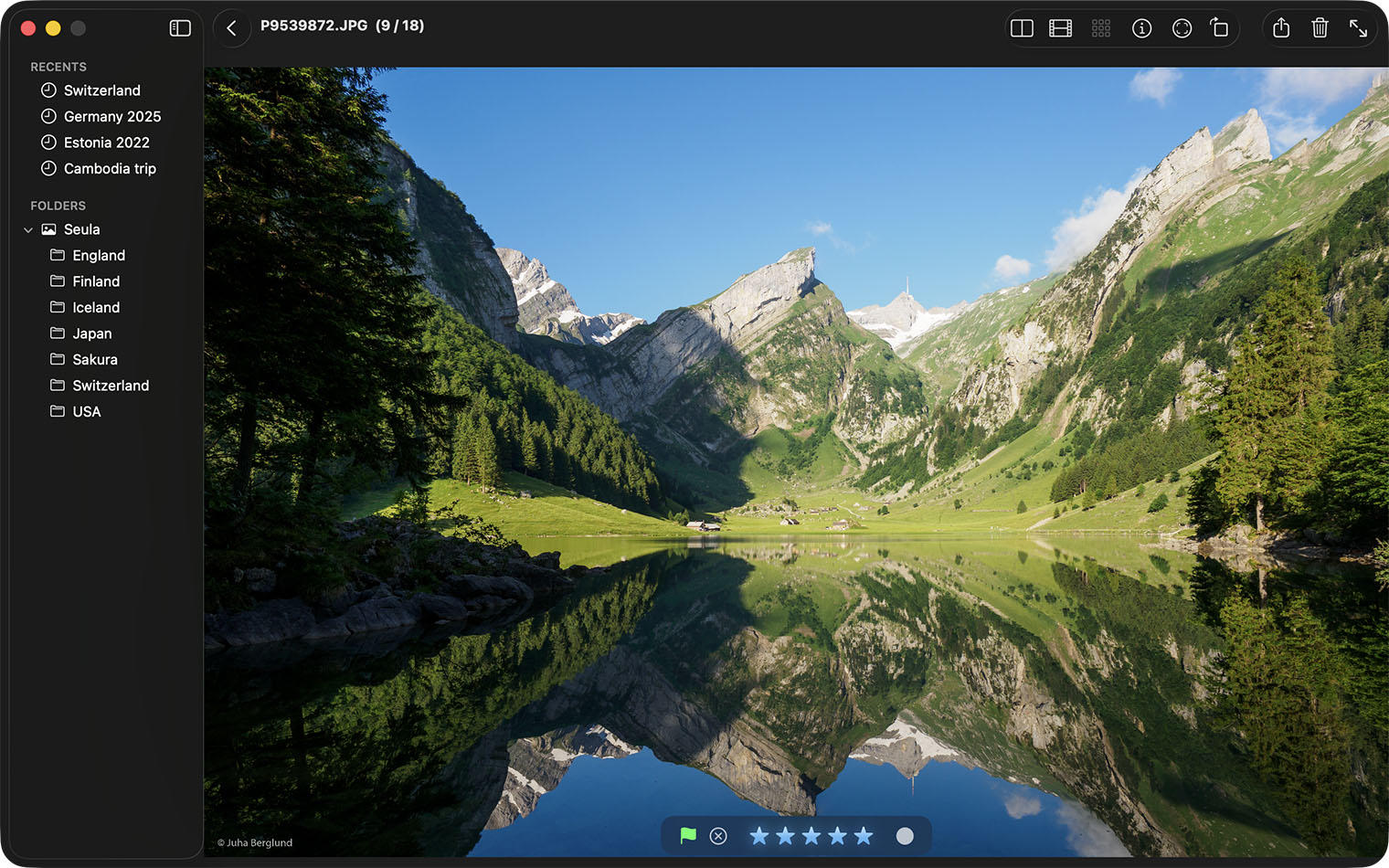
You can apply every mark from the keyboard, the menu bar (Image menu), the right-click menu, or the on-screen rating bar at the bottom of the viewer.
The rating bar's visibility in Viewer is set in Settings ▸ Viewer ▸ Rating bar visibility ▸ Rating bar in Viewer: Always / On hover / Hidden. This does not change the toolbar. In Viewer, choose View ▸ Customize Toolbar to add Rating. You can also choose which controls appear (stars, pick/reject, color). Visibility is set independently for Viewer and Compare. If the bar is hard to read over a bright photo, turn on Settings ▸ Viewer ▸ Rating bar color and style ▸ Solid background, or pick a stronger Color there.
Cull faster with auto-advance
Auto-advance moves you to the next photo the moment you mark the current one, so you can rate a whole folder without touching the arrow keys. Choose Settings ▸ Viewer ▸ Auto-advance after and pick the trigger:
- Off: stay on the photo after marking.
- Pick / reject: advance after a flag.
- Rating: advance after a star rating.
- Color Label: advance after a color label.
- Any decision: advance after any of the above.
Your marks are saved automatically
You never have to "save." Seula writes your ratings as standard metadata, and your originals are never altered. For the details of where each mark is stored and how Lightroom reads it, see Metadata and compatibility.