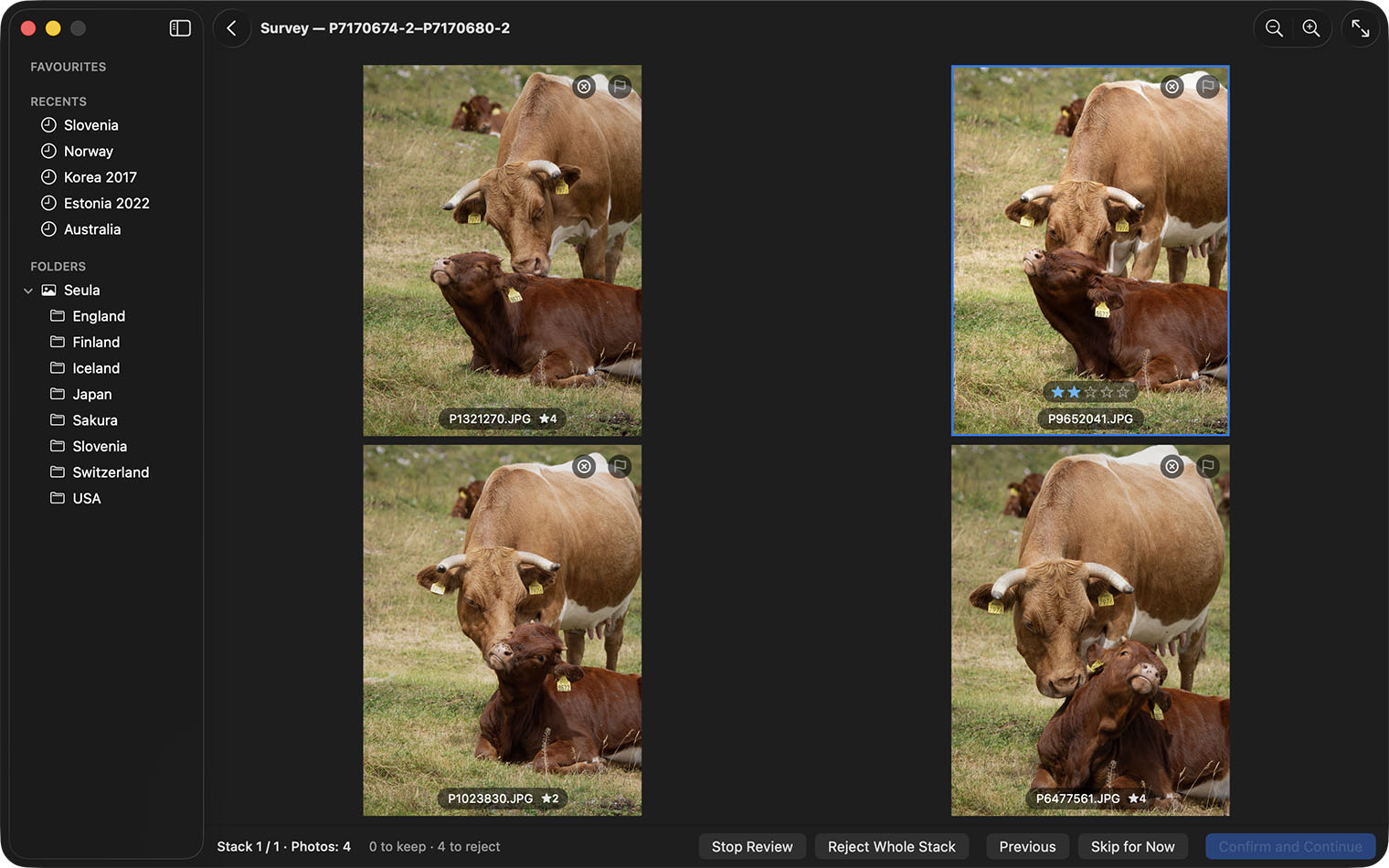
Photo Stacks
Seula can group similar photos taken close together into a stack card. Review a folder one stack at a time and choose the best frames from each stack.
Show and open stacks
Choose View ▸ Show Stacks (⌥⌘K). Seula detects stacks from capture time and, optionally, image content. Detection does not move, rename, or change files.
A stack card shows the photo count, the highest star rating among its photos, and how many are picked, rejected, or still unflagged. A checkmark means every photo is flagged.
Filters also limit the photos shown in a stack. A stack with no matches disappears. One matching photo appears as an ordinary photo; two or more form a card whose cover, sheets, and count show only matching photos. A label such as 2 / 3 match tells you how many photos from the original stack are visible. Clearing the filter restores the full stack.
- Double-click a card or press Return to open its cover in the viewer.
- Press ⌥⌘↓ or click the photo count to open the stack in place.
- Press ⌥⌘↑ to close it.
- Choose Open Stack in Survey from the contextual menu to see the matching photos together. Two to four matching photos can also open in Compare.
In the viewer, swiping stays within an open stack. At either end, the photo resists and springs back. If you repeat the same blocked swipe, Seula briefly reveals the filmstrip and emphasizes the current end of the highlighted stack.
When you move between photos in the same stack with the arrow keys, navigation controls, or filmstrip, the photo changes without a transition, making small differences easier to compare. A trackpad swipe still follows the gesture. The same rules apply when you open a photo from Burst Review, even with Show Stacks off.
A closed stack acts as one item. A star rating, color label, or flag applied to its card applies to every visible photo in the stack. File actions such as copy, move, export, and Move to Trash, as well as Rotate, also target the visible photos. With no filter, these actions target the whole stack. Print and Rename apply to the photo shown on the card. Open the stack to work with one photo. Review This Stack opens every photo in the original stack even when a filter is active.
Adjust detection in Settings ▸ Stacks. Seula remembers the Show Stacks choice when you change folders.
Changing the maximum time gap regroups the current folder. When you are viewing a photo inside an open stack, the same photo stays on screen and its new stack stays open. If the photo no longer belongs to a stack, viewing continues with it as an individual photo.
Correct a stack
If automatic grouping is wrong, use the stack's contextual menu:
- Expand Stack shows its photos; Collapse Stack returns them to the card.
- Split Stack Before This Photo splits the stack at the selected photo.
- Merge into One Stack combines selected photos or stacks.
- Ungroup Stack (This Session) returns a stack to individual photos.
Press ⌘Z to undo a correction. Corrections reset when you open another folder.
Photo-analysis suggestions
Choose Compare Suggestions or Show Recommendation from the stack's menu or Burst Review. You can browse every photo in the stack, including photos hidden by your filter. Returning preserves the filter and your unconfirmed Burst Review choices.
See Image Analysis for what the suggestions mean and why they were made.
Burst Review
Burst Review visits stacks one at a time. You can start it even when Show Stacks is off.
- Press ⇧N or choose Image ▸ Burst Review ▸ Review Incomplete Stacks.
- Press P for photos to keep and X for photos to reject. Choose Reject Whole Stack if you do not want to keep any. In a stack you have not flagged yet, the suggested starting photo is already marked to keep, so if you agree, all that is left is to confirm.
- Choose Confirm and Continue, or press Return. Seula saves the stack's flags as one undoable action and opens the next stack. The button stays dimmed until at least one photo is marked to keep.
Skip for Now postpones a stack. Previous returns to the preceding stack. Esc or Stop Review ends the review. Confirmed flags remain saved; after confirmation, Seula discards only unconfirmed choices in the current stack.
When the review ends, its summary offers Show Picked, Show Unflagged, and Review Skipped. Choose Review All Stacks to include stacks that are already fully flagged.